SharePoint library is not syncing
Confirm library access, then read the existing OneDrive status.
Applies to: SharePoint Online libraries already synced through OneDrive.
Revision 5 · 18 November 2026 · General first-line guidance. Wording varies by version; a symptom is not a confirmed diagnosis.
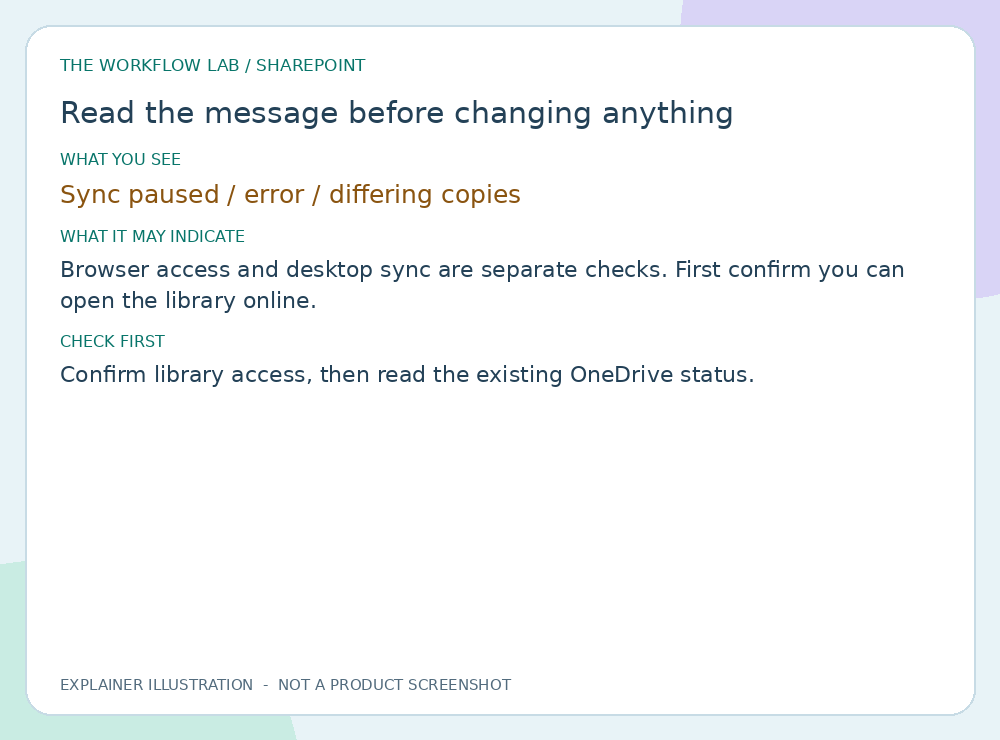
What does the message mean?
Some rows describe a visible symptom rather than an exact message. Wording marked “varies” may differ on your screen.
| What you see | What it may indicate | What to check |
|---|---|---|
| Sync paused / error / differing copies | Browser access and desktop sync are separate checks. First confirm you can open the library online. | Confirm library access, then read the existing OneDrive status. |
| Access denied in the browser | The account cannot open the content through that link. | Check the work account and ask the owner. Re-syncing will not grant access. |
| Paused symbol | OneDrive is not currently syncing. This is a status, not proof of an error. | If paused and you are allowed to, choose Resume syncing once and watch for progress. |
| Red cross | A file or folder cannot sync. The panel message gives the reason. | Read the exact message. Do not delete the file to clear the icon. |
| No message at all | Problems can happen without any message. A blank screen or a missing control is still useful evidence. | Record the visible behaviour, the time and who is affected. Do not guess a code. |
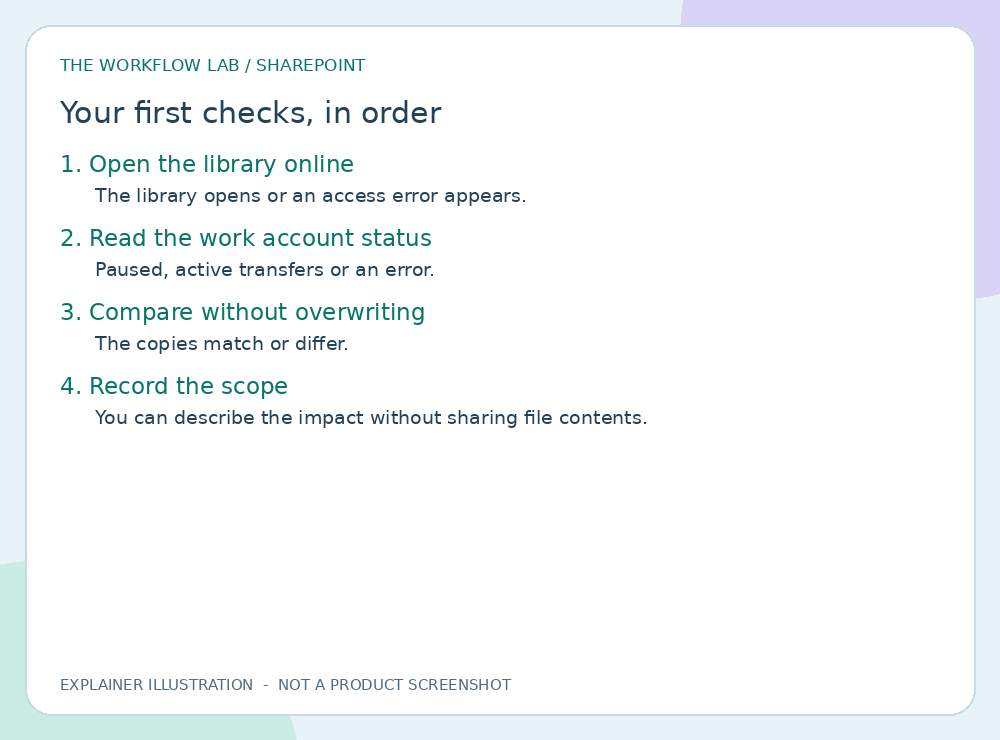
Step-by-step checks
Work in order and stop when it is resolved. If your screen differs, note what is different and ask IT or the owner.
Open the library online
- Do this
- Use your normal SharePoint link and the intended work account.
- What you should see
- The library opens or an access error appears.
- Then what?
- If access is denied, use the access guide. Do not recreate the sync.
Read the work account status
- Do this
- Open the work OneDrive cloud panel and note the exact message.
- What you should see
- Paused, active transfers or an error.
- Then what?
- Resume an ordinary pause only if permitted. Let activity finish. Record errors.
Compare without overwriting
- Do this
- View the same file online and locally without editing either.
- What you should see
- The copies match or differ.
- Then what?
- If different, stop and protect unsynced work. Do not overwrite based on timestamps alone.
Record the scope
- Do this
- Note whether one file, the whole library or several colleagues are affected.
- What you should see
- You can describe the impact without sharing file contents.
- Then what?
- Send this to IT. Do not unlink the library or add a second sync connection.
When to stop and contact IT or the owner
- Work could be lost, or you cannot tell which version is current.
- The problem repeats, or a managed setting blocks you.
- A step would change production data, shared connections, permissions or security.
What to put in your support request
The app and version if visible, your device, the time, the exact message, who is affected, and the checks you tried with what you saw. Remove names, addresses and confidential content from screenshots. Never send passwords or MFA codes.
Microsoft reference
Microsoft documentation for this topic (opens a new tab). Some links are product hubs. Official pages may include advanced steps; ask IT before applying them on a managed device.
Related guides
Was this guide helpful? Leave feedback
Tell us what worked, what was unclear, or what is missing. Feedback is private and goes to The Workflow Lab for review. It is not shown publicly and is not an IT support request.
The Workflow Lab is independent of Microsoft and is not your employer’s service desk.