UI element not found in a desktop flow
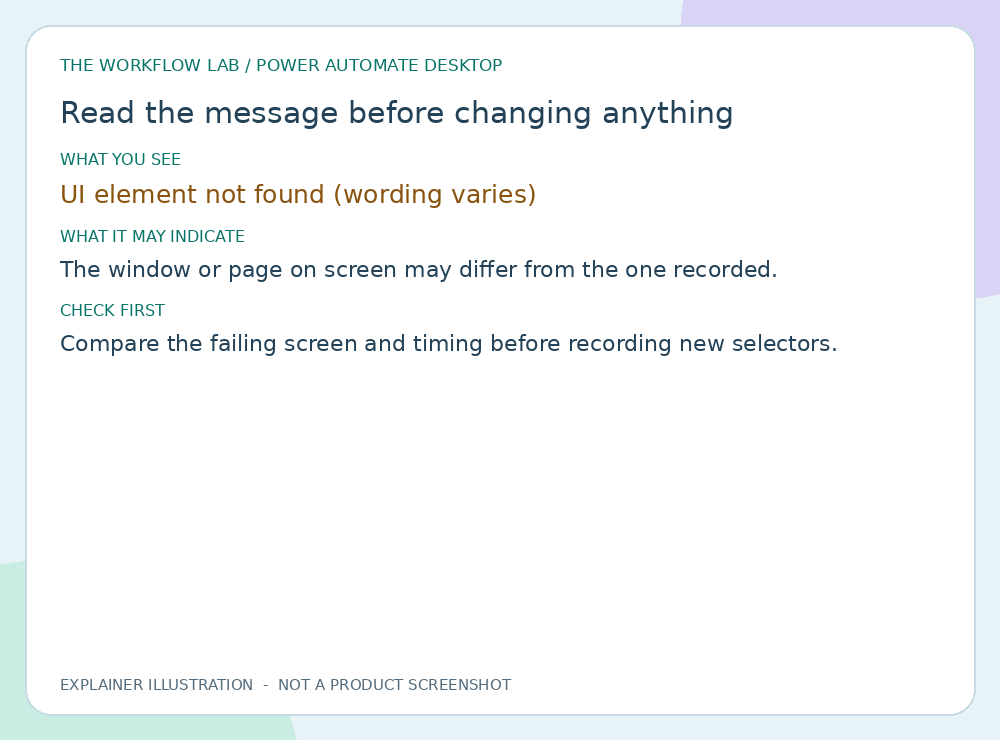
Compare the failing screen and timing before recording new selectors.
Applies to: Power Automate for desktop on Windows.
Revision 5 · 18 November 2026 · General first-line guidance. Wording varies by version; a symptom is not a confirmed diagnosis.
What does the message mean?
Some rows describe a visible symptom rather than an exact message. Wording marked “varies” may differ on your screen.
| What you see | What it may indicate | What to check |
|---|---|---|
| UI element not found (wording varies) | The window or page on screen may differ from the one recorded. | Compare the failing screen and timing before recording new selectors. |
| No message at all | Problems can happen without any message. A blank screen or a missing control is still useful evidence. | Record the visible behaviour, the time and who is affected. Do not guess a code. |
Step-by-step checks
Work in order and stop when it is resolved. If your screen differs, note what is different and ask IT or the owner.
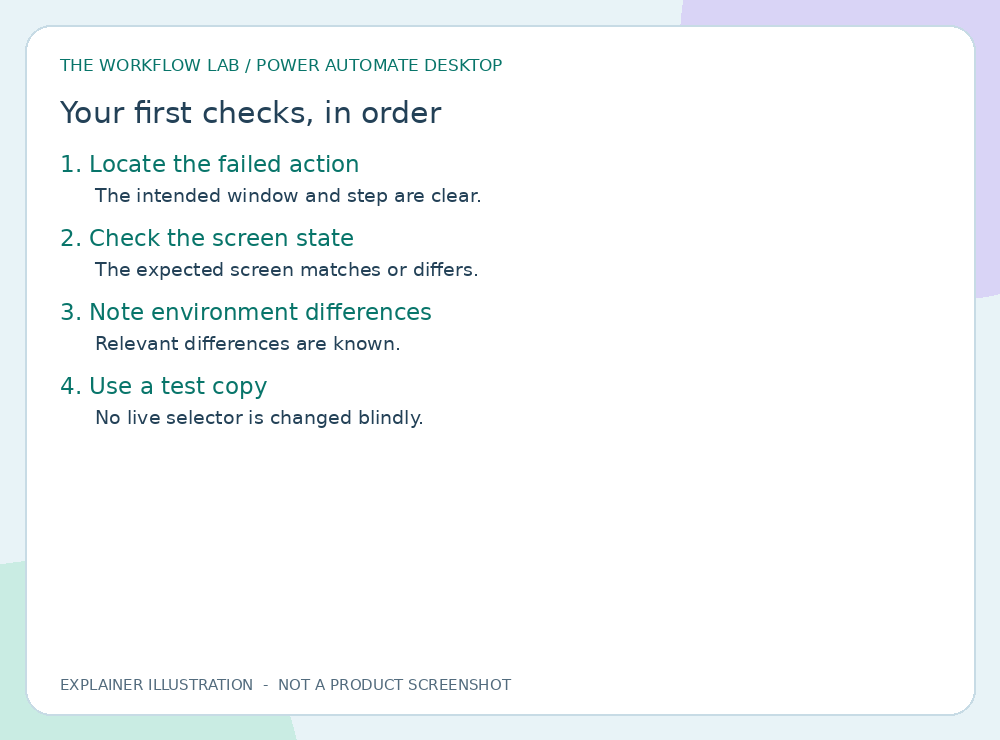
Locate the failed action
- Do this
- Review which action failed and which application it expects.
- What you should see
- The intended window and step are clear.
- Then what?
- If this explains what you see, record it and continue only if the next check still applies.
Check the screen state
- Do this
- Confirm the page loaded and no prompt or different account is blocking it.
- What you should see
- The expected screen matches or differs.
- Then what?
- Record the result without changing settings. Stop if work, data or security could be affected.
Note environment differences
- Do this
- Record display, browser and app-version differences from a working run.
- What you should see
- Relevant differences are known.
- Then what?
- Use only the approved action described here. If it does not match your screen, stop and ask IT.
Use a test copy
- Do this
- Ask the maker to adjust selectors and waits in non-production first.
- What you should see
- No live selector is changed blindly.
- Then what?
- If unresolved, contact IT or the owner with sanitised evidence. Do not repeat actions that could duplicate data.
When to stop and contact IT or the owner
- Work could be lost, or you cannot tell which version is current.
- The problem repeats, or a managed setting blocks you.
- A step would change production data, shared connections, permissions or security.
What to put in your support request
The app and version if visible, your device, the time, the exact message, who is affected, and the checks you tried with what you saw. Remove names, addresses and confidential content from screenshots. Never send passwords or MFA codes.
Microsoft reference
Microsoft documentation for this topic (opens a new tab). Some links are product hubs. Official pages may include advanced steps; ask IT before applying them on a managed device.
Related guides
Was this guide helpful? Leave feedback
Tell us what worked, what was unclear, or what is missing. Feedback is private and goes to The Workflow Lab for review. It is not shown publicly and is not an IT support request.
The Workflow Lab is independent of Microsoft and is not your employer’s service desk.